1998 Mukwonago High School Football Radio Broadcasts

1998 Mukwonago High School football games broadcast on WAUK 1510AM Sports radio Double Play.  Converted from old cassette tapes using sophisticated AM/FM Walkman with MEGABASS 2x expansion circuit technology.

They might have done one or two more broadcasts but I’m not sure. Probably no way to find it now unless someone had purchased the tape.

Right Click and ‘Save Link As’ to download a copy.

Mukwonago vs Waukesha South – 1510AM WAUK Game of the Week – 10-09-1998 – 64kbps.mp3

Mukwonago vs Hartland Arrowhead – 1510AM WAUK Game of the Week – 10-16-1998 – 64kbps.mp3

Mukwonago vs Janesville Parker – 1510AM WAUK Game of the Week – 10-27-1998 – 64kbps.mp3

SQL Reporting Services and Dynamics NAV Option Strings: Part 2

In Part 1 we created a table and a processing report in Dynamics NAV that would enable us to later access every Dynamics NAV option string value in a SQL Reporting Services report.  Now, I will show how I handled the query to get option string values into an SSRS report.  This is a little less complex than Part 1. :)

With all the steps of Part 1 complete, we now need a simple and consistent way to query for those values.  I solved this problem by created a User Defined Function in my database.

Which looks like:

CREATE FUNCTION [dbo].[OptionString] (@TableName AS NVARCHAR(30), @FieldName AS NVARCHAR(30), @FieldInteger AS INT)
RETURNS NVARCHAR(250) AS
BEGIN
RETURN (
SELECT [OptionString]
FROM [CRONUS USA, Inc_$Option Strings]
WHERE [TableName] = @TableName AND [FieldName] = @FieldName AND [FieldInteger] = @FieldInteger
)
END

Each time I want my SSRS report to return the option text value instead of the integer value, I insert this line into my query:

dbo.OptionString(‘Sales Header’,'Document Type’,[Document Type]) AS ‘Document Type Option String’

I’m passing into the UDF the table, column name (the first and second parameters and should be known if you’re writing the report) and the query itself is supplying the integer value which is required to return the option value string from the table we created in Part 1.

I’ve provided a SQL query in the zip file below that queries table 36, the Sales Header table.  The UDF is also included as well as the SSRS RDL.  The query can go directly into an SSRS report resulting in the picture below if everything has been put together correctly:

Screenshot12_5_20092_34_03PM.png

You now have a simple and consistent way to generate and query for NAV option string values.   Hope this helps someone!

Files:

Option Strings – SQL – BW1.00.zip

SQL Reporting Services and Dynamics NAV Option Strings: Part 1

One downside to using SQL reporting services with Dynamics NAV versus a NAV report or another 3rd party solution such as Jet Reports (jet uses C/FRONT to access option values, flowfields, etc. which gets these values directly from NAV) is that you lose the access to the Option String values and instead are forced to deal with the integer values assigned by NAV to each string value at the SQL level.

For example, in table Sales Header (#36) the very first field Document Type (field #1)  is of type “Option”.

image

This particular option string, “Quote,Order,Invoice,Credit Memo,Blanket Order,Return Order” is listed above.

If you looked at the table in NAV, with the Cronus USA database you’d might see something like:

image1

Option strings use a zero based indexing. So, Quote = 0, Order = 1, Invoice = 2, etc. sitting in SQL.  If you compare the two pictures the integer values match the string value order.

If you looked at the same table in SQL:

image

These values returned might not necessarily make sense to the end user.  1, 2, 3, etc. instead of Order, Invoice, or Credit Memo.

Unfortunately, there’s no way to get these in a SQL query.  They are stored in the NAV Objects themselves which reside in the SQL table “Objects”.  The text of the objects is compressed and possibly encrypted before being stored as a BLOB value.  This isn’t really well documented anywhere so I don’t know for sure.  Regardless, querying the Option String value from SQL is not possible, leaving you with workarounds to get the text of these fields into your SSRS reports.

You could use a CASE statement in the SSRS SQL code but that gets rather tedious after a while and the code is rather static.  If you had 50 reports using the same CASE code and you add another option string value, that’s 50 places you need to change code.  Maybe easier than that you could push that logic into a stored procedure or user defined function.  Better yet if you actually had a table of values you could query.  Yet, creating a user populated table is problematic because there’s a high initial cost, additional maintenance for new option fields and possible errors.

Better idea: Let’s have NAV make the table!

We’ll need a table to store these values as well as a processing report which fill the table with useful option string values.

First, the table.  I created a table “Option Strings” with the fields below and a key comprised of the TableNo, No., and Integer columns to enforce unique table, field and option values.

image

Most of these fields are based off of the NAV virtual table “Field”.  This table doesn’t exist on disk but similar to tables like “Date” and “Table Information” is assembled on the fly and can be used in Forms and Reports.

The “Field” virtual table provides an always up to date listing of every single field in the NAV database with helpful attributes that we’ll use to help us populate the “Option Strings” table.

Second, I created a report with “Field” as the first DataItem.

image

I’ve set the table filter to filter on Type = Option.  The report will loop through each field of type option and uses RecordRef and FieldRef options to retrieve the entire OptionString.  The report then takes the OptionString, copies the string value up to each comma, assigns that to a new “Object Strings” record and assigns an Integer value.

After running the report you should have a populated table.

image

Now we can reference this table in SSRS, query it for the OptionString value based on the Table Name, Field Name and the SQL integer value (which the SQL query will provide).

My 5.0 NAV client has crashed when processing a field somewhere in the 2000000000+ table range so I’ve excluded those tables in the report.  The OPTIONSTRING function might be the issue.  I didn’t have problems in the classic NAV 2009 SP1 client so I’m guessing there is a bug somewhere.  I’ve included the NAV objects in text format below (1 table, 1 form and 1 report).  They are in the 123456700 range as they were developed using the TechNet NAV license.  I used the Cronus USA Ltd. company in the US localized version of NAV.

Feedback on the process and code is welcome.  I slapped together the processing report code pretty quickly and didn’t notice any problems with it so I left it as the first version I created.

I’ll outline using this new table in a SQL Reporting Services report in my next post.

Files:

Option-Strings-BW1.00.zip

Google Voice

I’ve been using Google Voice since the end of April http://www.google.com/voice/.  After seeing a Google Voice feature list I was sure it would address some of my specific issues with voicemail, as well as improve texting and add several other cool features.  It did.  I have also been trying to find better was to use the service and have also run into issues that make it hard to use.

What GV has “fixed”

For the past several years voicemail has become increasingly irritating as text messaging and email started to be more prevalent on mobile devices.  If I had the choice between voicemail or an almost instant gratification text or email, I’m picking text almost every time. Dialing, waiting for a connection, waiting for VM to announce the date and time, then finally getting to listen to the message… ugh. Heaven forbid you need an older message that’s a couple weeks old and buried somewhere in there.  So, for me, the main draw to Google Voice was the ability to transcribe a voicemail and have it emailed, skip all of the rigmarole.  This has proved to be quite handy when coupled with the GV web interface as I can play them directly in the browser, do a text search on the voicemail transcriptions, texts or search for any of those things by specific contact (Advanced search operators at Google Voice help: http://www.google.com/support/voice/bin/answer.py?hl=en&answer=146756.  The transcriptions are not perfect but you get the general idea.  The ability to send and receive text messages at my GV number through the web interface is also really helpful and cuts down on the amount that I use out of my plan.

How I’m Using It and Issues

I have a Nokia E71 http://www.nokiausa.com/find-products/phones/nokia-e71 phone and a huge factor in picking this phone was its native SIP client and wifi abilities.  I’m quite taken with the idea of cutting the cell company out of the loop as much as possible.  Google Voice has the option of defining a Gizmo5 number so if you have a Gizmo5 http://www.gizmo5.com/ account and a soft phone configured for that account, calls to your Google Voice number will be forwarded to that device.

image

When I’m at connected to wifi calls to my Google Voice number go to my Gizmo5 account (no cell minutes) and when I’m out and about they’ll come to my phone through the cell network.  The VoIP calls are usually very good quality. Google doesn’t work with incoming SIP connections so the call back feature in the browser or on the mobile site is handy.

Initiating outgoing calls and texts is an issue.  If you want to call someone you have to call your number, get the GV voice system, dial 2 and then enter the number.  Not going happen.  One way around this; every text message received comes from a 406 area code and will be unique per user in your contact list. You can call or text this number and it will go to your contact and look as though it has come from your GV number.  I have been adding this number to my contacts and using it to call/text them.  For single use or first time numbers this app has helped initiate calls: http://www.gvdialer.com/  It’s rather slow to complete the whole process though and doesn’t help with text messages.

The Google Voice mobile website also helps get around some of the initiating text or call issues but there have been times that I can’t get a data connection and this isn’t an option.  I could always text from my “real” phone number but then what’s the point of handing out my GV number? I would only have people confused as to which number to use.  Total chaos.

Screenshot0002
https://www.google.com/voice/m


This will initiate a callback with numbers I run into in the browser: http://thatsmith.com/2009/03/google-voice-add-on-for-firefox/

What I’d Like To See

This application, GV, http://evancharlton.com/projects/gv/ is probably the closest thing to what I’d like to see for a native phone application that’s out there right now.  Most of the problems I’ve run into stem from not having a reliable data connection and an app could help cache or retry retrieving or sending texts and voicemails.

Possible app features?

  • Integrate with existing device contact functionality – for calls, texts
  • Outgoing calls initiate a callback over a data connection, if data is unavailable fallback to calling numbers using tones
  • Visual voicemail similar to the iPhone – cache info if a data connection is unavailable
  • Send and Receive text messages over a data connection and avoid the forwarding and text charges
  • Retrieve the Google 406 number and add it to a contact

So, while Google Voice isn’t there yet it’s pretty darn close. 

NAV Default Database File Locations

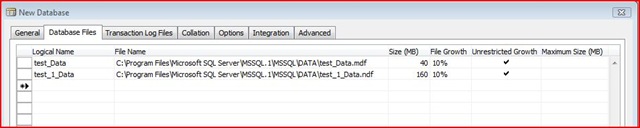
I’m frequently creating new databases in NAV.  One annoyance was NAV’s insistence on the default file location.  In my dev environment this was always where I had installed SQL.

Capture

Not where I want my databases. 

I spent some time investigating and after watching file system and registry access on both server and client I wasn’t able to see it grab any relevant values from those spots.  From what I can tell after watching packets between client and server with a packet sniffer, the NAV client is parsing the file location from the sp_helpfile stored procedure.  The solution?  NAV is essentially following the Master database. 

How to move system databases in SQL Server:
http://msdn.microsoft.com/en-us/library/ms345408.aspx

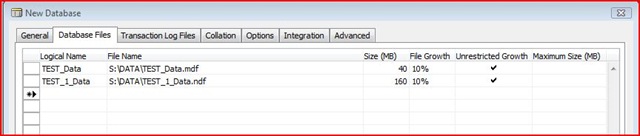
Just move the Master database to the spot you’d like the default file locations. Now when I specify Database Files… Yay! 

Capture2

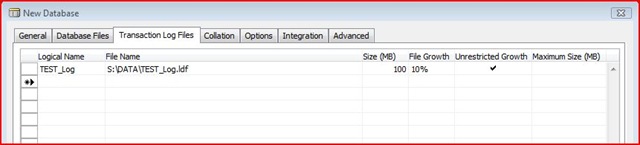
The only downside is that is also will want to put the Transaction Log Files in the same file path.  Small price to pay. :)
Capture3

Does anyone else have a better way of doing this?  It would at least be nice if NAV could somehow use the default file locations specified within SQL.